
Dedicated IP server dashboard
The dashboard explained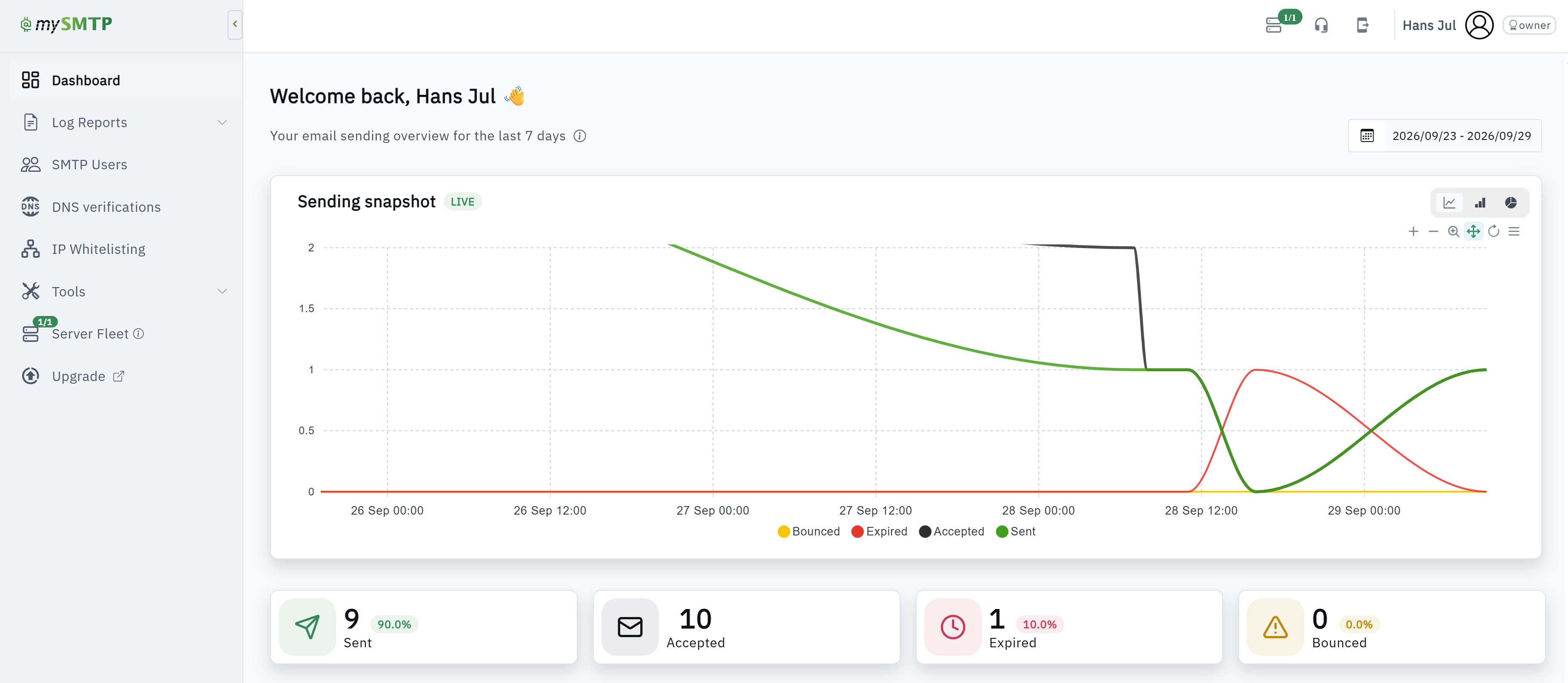
How to use the mySMTP dedicated IP dashboard
The mySMTP dashboard at app.mysmtp.com gives you an overview of sending from your dedicated SMTP server. Use it to follow email activity, investigate delivery problems, manage SMTP users, check domain authentication, and review server settings.
Sign in and choose the right account
The account owner signs in with the same account login used at clients.mysmtp.com. This account can view the full dashboard, including account and purchase information and all servers in the fleet.
An SMTP user signs in with a user login created under SMTP Users in the dashboard. The user's view is restricted: it does not show email purchase history and consumption status, other servers in a multi-server fleet, or the account profile and upgrade options. Give each person or application its own SMTP user where practical, so activity can be identified separately.
If you cannot sign in, use Lost password? on the login screen or contact
Dashboard
Dashboard is the starting point for monitoring sending. The sending snapshot defaults to the *ast seven days. Change the date range with the calendar field to focus on a particular period. Switch between the line, bar, and donut chart to see the same activity in different ways.
The chart groups messages by Sent, Accepted, Bounced, and Expired. Use it to spot changes in volume or an unusual rise in failures, then open Log Reports to investigate individual messages. The dashboard labels its hourly display as GMT+1 server time; check the displayed range when comparing a graph with your own application's logs.
Accepted means the receiving mail server accepted the message. It does not confirm that the message reached the inbox or was opened.
Log Reports
Open Log Reports when you need to trace a particular send or understand a bounce. Review the timestamp, recipient, delivery status, and any available SMTP response. A temporary failure may be retried, while a permanent rejection needs a closer look at the address, domain authentication, or the receiver's response.
Detailed sending logs are available for 30 days. Where the report offers a CSV export, download it if you need to work through a larger set of messages or share a case with support. If you contact support, include the approximate send time, sender, recipient, and the SMTP response; avoid sending passwords.
SMTP Users
Use SMTP Users to manage the logins used by people, applications, and email clients that send through mySMTP. Create a separate user for each integration or team where useful, and enter that user's SMTP credentials in the sending application. This makes it easier to identify which integration generated traffic and to limit the effect of a credential change.
The account owner can also create a dashboard login for a subuser here. A subuser can inspect the sending information available to that login, with the account restrictions described above. Keep the owner login for account administration.
You will also find the option to make a Bcc copy of all emails sent. A Bcc will be sent to your preferred email archive or other.
DNS verifications
Use DNS verifications to check the authentication records for your sending domain. SPF authorizes the sending infrastructure, DKIM signs outgoing messages, and DMARC sets a policy for messages that fail authentication and alignment checks.
Add the exact records supplied for your account at your domain's DNS provider, then return to the dashboard to check their status after DNS has updated. If your domain already has an SPF record, update that record rather than publishing a second SPF record. A record that is present but not yet verified may simply need more time to propagate; also check for typing errors and the correct DNS host name.
IP Whitelisting
Use IP Whitelisting to manage approved public source IP addresses for SMTP access when your setup uses this feature. Enter the public IP of the system that connects to mySMTP, such as an application server or office network, rather than a private LAN address. Keep the list limited to trusted senders and remove entries that are no longer used.
If your internet connection has a changing public IP, check how your sending application authenticates before relying on a fixed whitelist entry. Contact support if you are unsure how whitelisting applies to your server.
Tools
Expand Tools for the utilities available to your account. Use the relevant tool when checking setup or troubleshooting sending. The exact options may depend on your server and account configuration. For general domain and deliverability checks outside the dashboard, you can also use the [mySMTP Deliverability Toolbox](https://toolbox.smtp.ai/).
Server Fleet
Server Fleet shows the dedicated SMTP servers assigned to the account. If your account has more than one server, the account owner can select a server to review its own activity and settings. Check the selected server before interpreting a chart or log report. A subuser does not see the full multi-server fleet.
Account and support controls
The profile icon at the top right leads to account options. The account owner has access to the account profile and upgrade options; these are hidden from subusers. Use clients.mysmtp.com for the authoritative client account and billing login.
The support chat icon connects you with support. The footer also links to the Service Status page, where you can check for a reported incident before troubleshooting a wider sending issue.
A quick way to troubleshoot a missing email
1. Select the right server in Server Fleet, if your account has several.
2. Open Log Reports and locate the message by time and recipient.
3. Read its status and the receiver's SMTP response. An accepted message may still be filtered by the recipient's mailbox provider; a bounced or expired message needs the reported cause addressed.
4. Check DNS verifications if the response mentions authentication or domain policy.
5. If the result is unclear, contact support with the message details and SMTP response.